On this page
Query Tab Reference
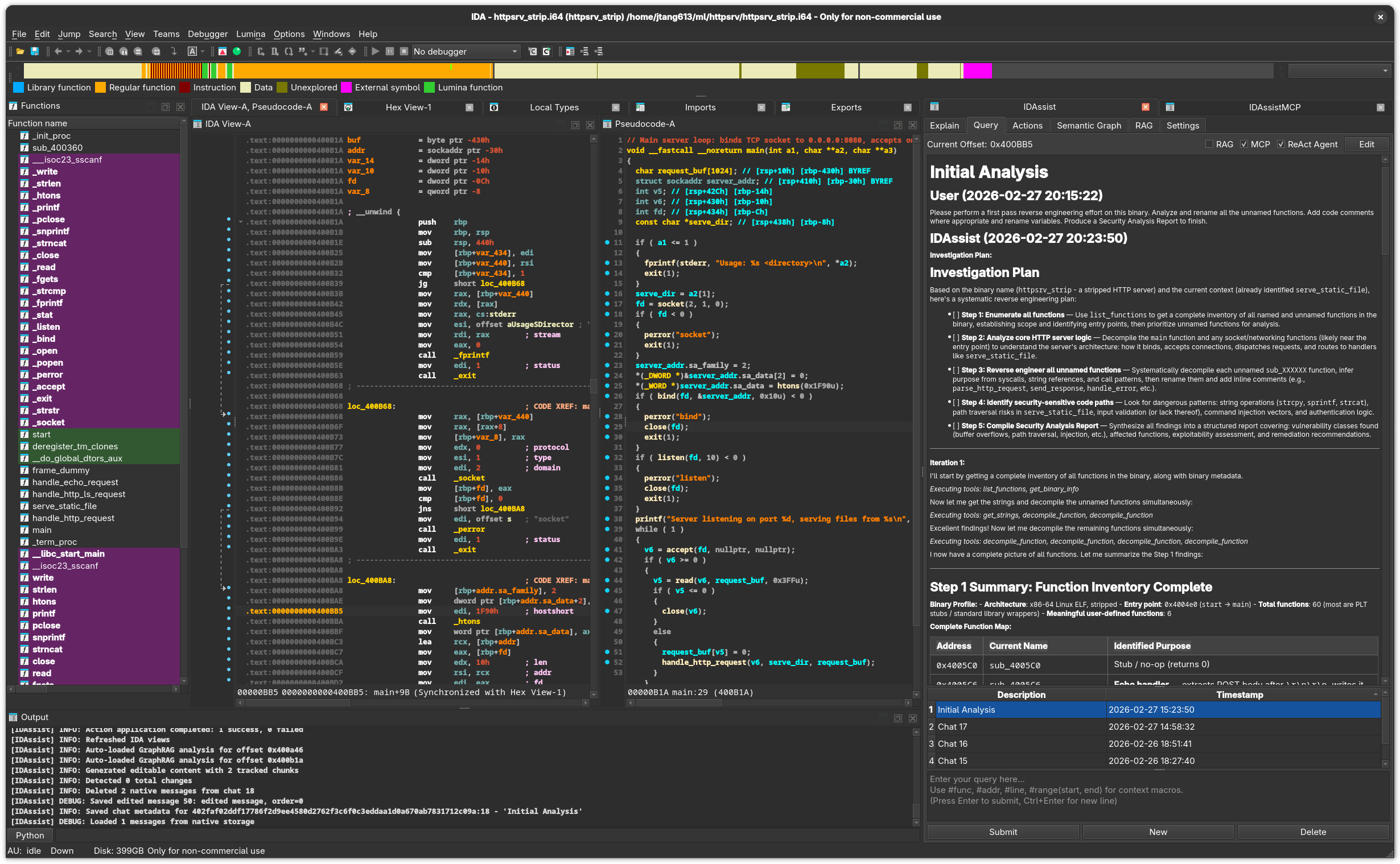
Purpose
The Query tab provides an interactive chat interface for asking questions about the binary. It supports persistent chat history, context macros for injecting code, MCP tool calling, ReAct autonomous agent mode, and RAG-enriched queries.
UI Elements
Top Row
| Element | Description |
|---|---|
| Current Offset | Address of the function under the cursor. |
| RAG checkbox | Inject relevant RAG document snippets into the query context. |
| MCP checkbox | Allow the LLM to invoke MCP tools during response generation. |
| ReAct Agent checkbox | Enable autonomous multi-round investigation mode. |
| Edit / Save button | Toggle between read mode and edit mode for conversation history. |
Chat Content Area
A StreamingMarkdownBrowser that displays the conversation history and streams LLM responses. Features:
- Full conversation displayed with user messages and assistant responses
- Incremental streaming of new responses
- Auto-scroll follows new content; pauses if you scroll up, resumes when you scroll back to the bottom
- RLHF feedback links on each response
Chat History Table
Below the content area, a sortable table lists previous conversations:
| Column | Description |
|---|---|
| Description | Chat title (auto-generated or user-edited). Double-click to rename. |
| Timestamp | When the chat was created, sorted newest first by default. |
- Click a row to load that conversation
- Multi-select with Ctrl+Click for batch deletion
- Double-click the Description cell to rename a chat
Input Area
A text editor for composing queries. Supports:
| Input | Action |
|---|---|
| Enter | Submit the query |
| Ctrl+Enter | Insert a newline |
Placeholder text shows the available context macros.
Button Row
| Button | Description |
|---|---|
| Submit | Send the query to the LLM. |
| New | Start a new empty conversation. |
| Delete | Delete the selected conversation(s) from history. |
During generation, Submit is replaced by Stop to cancel.
Context Macros
Type these macros anywhere in your query to inject IDA context:
| Macro | Expands To |
|---|---|
#func |
Current function’s pseudocode (Hex-Rays) or disassembly |
#addr |
Address under the cursor (e.g., 0x401234) |
#line |
Current disassembly line at the cursor |
#range(start, end) |
Disassembly for the given address range |
Macros are expanded by the controller before the query is sent to the LLM. For #func, IDAssist prefers Hex-Rays pseudocode when available and falls back to disassembly.
Examples:
What does this function do? #func

Is there a buffer overflow at #addr?

Explain this instruction: #line

Analyze this code block: #range(0x401000, 0x401100)
MCP Tool Calling
When the MCP checkbox is enabled and your LLM provider supports tool calling, the LLM can invoke MCP tools during response generation. This enables multi-round interactions where the model:
- Analyzes your question
- Calls tools to gather additional context (disassembly, xrefs, function names)
- Incorporates tool results into its reasoning
- Returns a comprehensive answer
Tool calls and their results are displayed inline in the conversation.
ReAct Agent Mode
When the ReAct Agent checkbox is enabled, the LLM operates as an autonomous investigation agent:
- Plan — Develops an investigation strategy
- Investigate — Executes tools to gather information
- Reflect — Evaluates findings and decides next steps
- Synthesize — Produces a comprehensive answer
The agent continues across multiple reasoning rounds until it has enough information. You can click Stop at any time to halt the investigation and get the current findings.
ReAct mode is most useful for complex questions that require exploring multiple functions, tracing data flows, or understanding relationships across the binary.
Edit Mode
Click Edit to switch the conversation display to a text editor where you can modify the conversation history. Click Save to store changes. This is useful for cleaning up conversations or correcting context before continuing a discussion.
Chat Persistence
Conversations are stored in the analysis database and persist across IDA sessions. Each chat includes: - All user messages and assistant responses - Timestamps - The binary hash (conversations are associated with the binary being analyzed)
IDA-Specific Details
#funcmacro extracts pseudocode viaida_hexrays.decompile()or falls back to disassembly#addrreads the current cursor position fromida_kernwin#lineextracts the disassembly line at the cursor#rangeextracts disassembly between two addresses usingida_lines- All IDA reads happen on the main thread via
execute_on_main_thread()
Related Documentation
- Query Workflow — Step-by-step query guide with MCP and ReAct
- Explain Tab — Generate function explanations
- RAG Tab — Add reference documents for context
- Settings Tab — Configure providers and reasoning effort